DAILY NEWS

Stay Ahead, Stay Informed – Every Day

Advertisement
My Three Favorite Garmin Features to Use on Race Day


We may earn a commission from links on this page.

This past weekend I ran a 10K while wearing both the Garmin Forerunner 970 and the Forerunner 165 Music, and while I’ll be doing a full comparison soon, the experience made one thing immediately clear: Sometimes it’s worth it to have a premium running watch. While both watches have excellent running features, the 970 has a few that the 165 lacks—and after putting them to use on race day, I can say that two of them in particular made a real difference.
Master your “race pace” with Garmin’s PacePro featureI’d never tested Garmin’s PacePro in real race-day conditions before this weekend. The selling point of this feature is that it analyzes the elevation profile of your course and generates “dynamic pace guidance” based on both the terrain and your personal preferences. Before the race, you set a goal time or pace in Garmin Connect, then tell the watch how you want to handle hills—your options are to push harder on the uphills, use the downhills to recover, or aim for a negative split in the second half. On race day, a data field on your watch shows your target pace for the current split and how you’re tracking against it in real time.I love PacePro because it takes the mental math out of racing. Instead of constantly doing pace calculations in your head, you can glance at your wrist and instantly know whether you’re ahead, behind, or right on target. It’s like running alongside a coach who already knows the course.
To set up PacePro, head to Garmin Connect > Training & Planning > PacePro, select or create your course, enter your goal time, and sync it to your watch before race day. The Forerunner 165 Music also supports PacePro, so this one isn’t exclusive to the 970—but it’s still an undersung feature, and worth calling out.Stay accurate with a suggested finish line reminderThis feature, which is on the 970 but not the 165 Music, is beloved by many Garmin runners—and for good reason: When you cross the finish line, you’re more focused on grabbing a banana than hitting the “stop” button on your watch. When, 20 minutes later, you realize your watch is still recording, you’ve screwed your stats. Congratulations, your 10K now says 10.8 miles, and your pace is completely borked.If you have a course loaded on your compatible Garmin watch, the watch can detect when you’ve crossed the finish line and prompt you to trim your data to that point, even if you forgot to hit stop. It’s one of those features that seems small until the moment you need it, and then it feels like a lifesaver for your post-race data.Luckily, this feature works automatically once a course is active. To make sure it works, you’ll need to go to Garmin Connect app, select “Races & Events,” and double-check that your race is loaded onto your watch and ready to go before race day.

What do you think so far?

Ease your mind with “Auto Lap by Timing Gates”

Credit: Meredith Dietz

This is the feature I’m most excited to talk about, and it’s likewise exclusive to the Forerunner 970 (the 165 doesn’t have it). Here’s the problem it solves: In any big city race, you end up weaving through crowds, cutting tangents imperfectly, and generally accumulating a little extra distance that GPS dutifully records. By mile three or four, your watch’s splits probably won’t line up perfectly with the mile markers on the course. You might feel like you’re running a 9:00 pace, but the marker says something different, and now you’re doing mental gymnastics mid-race to figure out what’s real.”Auto Lap by Timing Gates” solves this by triggering laps based on the actual course mile or kilometer markers rather than GPS-measured distance. So when you cross mile one on the course, your watch logs a lap, regardless of how much GPS drift has accumulated. Your splits reflect the race as it’s actually measured, not the slightly off version your GPS recorded.To enable this feature, you’ll need to go to the Garmin Connect app and find your specific race under the “Races & Events” menu. You can either select an existing race by searching for the name or location, or you can create your own event. Toggle on the “Timing Gate” option, then specify whether you want to use miles or kilometers. On race day, you’ll start the official race as an activity on your watch, and your watch will automatically trigger laps as you pass the predefined official course marker, in addition to showing the actual distance run. This past race wasn’t too crowded, so I’m excited to put this feature to the test during a popular Brooklyn half-marathon next weekend.


Source link

10 Hacks Every Apple Notes User Should Know


We may earn a commission from links on this page.

Apple Notes is an excellent note-taking app that often goes under the radar because many of its best features are hidden. The app does a great job at capturing your ideas and syncing them across Apple devices, but when you start digging deeper, you’ll quickly realize that it has powerful features under the hood. As someone who’s used the app for over a decade, I’ve discovered quite a few of the best Apple Notes hacks on iPhone, iPad, and Mac. Here are 10 I think everyone should know.
Lock your notes with Face ID or Touch ID

Credit: Pranay Parab

In Apple Notes, you can set a password to protect sensitive notes. You can do this on an iPhone or iPad by holding down any note and selecting Lock Note. On a Mac, you’ll find the option when right-clicking a note. When you do, you’ll see a prompt to use the device’s passcode to lock the note. You can choose this, or use a custom password. You don’t have to use this password or passcode every time you unlock the note, however. Instead, you can enable biometric authentication to open locked notes. On your iPhone or iPad, go to Settings > Apps > Notes > Password, and enable Use Face ID (or Touch ID, if you have an iPhone or iPad with a fingerprint sensor). On a Mac, click the Notes button in the menu bar, select Settings, and enable Use Touch ID. It’s worth noting, though, that shared notes can’t be locked.Use Notes’ hidden scanner to add documents to your deviceYour iPhone’s Notes app has a built-in document scanner, but it’s buried under a nondescript menu that makes it hard to find. You can find it by opening a note and pressing the paperclip icon above the keyboard. Select Scan Documents, and point your iPhone’s camera at the pages you wish to scan. It’ll automatically pick up the borders of the document, complete the scan, and open the viewfinder for you to scan the next page. Once you’re done scanning, press the yellow checkmark in the top-right corner, and the file will be attached to your note. Alternatively, you can long-press the Notes app icon to find the option.
Enable offline notes to bypass iCloud syncingApple Notes is designed to sync notes across devices, but you can keep certain notes offline by enabling the “On My iPhone/iPad/Mac” account on your device. When you do this, notes stored in that folder won’t be synced with other devices using the same iCloud account. However, these notes aren’t completely offline either. If you have iCloud Backup enabled on those devices, Apple will save a copy of your “On my iPhone/iPad/Mac” notes to the cloud. To enable this folder on your iPhone or iPad, go to Settings > Apps > Notes, and enable On My iPhone/iPad Account. On your Mac, click the Notes button in the menu bar, select Settings, and enable On My Mac Account.Use handwriting mode to write with a stylusIf you have an iPad, you can use the handwriting mode to turn Notes into a digital notebook. You can also use Scribble mode to automatically convert your handwriting into text. This feature works best with an Apple Pencil: Tap the pen tool in Apple Notes to select the Handwriting tool and get writing. Once you’re done writing, hit the checkmark button in the top-right corner, then long-press your handwritten text to reveal more options. Select Straighten to make the handwriting more level. You can also tap the three-dots icon in the top-right corner of the note, select Lines & Grids, and pick one option to make it easier to write in a straight line. I prefer using an unruled note, but you can pick a different option that’s better for you. Other handwriting options include Refine (makes the handwriting more legible), Convert a text object to handwriting, and Paste typed text in your handwriting. The last two features require you to have your handwriting saved in a note, with at least 10 unique lowercase characters, which allows Apple to convert text into your handwriting.Some of these features are also available on iPhone. You can open any note in the app, select the pen icon in the toolbar above the keyboard, pick one of the tools, and start writing. It’s not as intuitive as using an iPad with an Apple Pencil or another stylus, but it’s decent enough for a quick scribble. Use advanced search filters to find the note you’re looking for

Credit: Pranay Parab

When you need to find a specific note, use Apple Notes’ advanced search filters to narrow down the results. On Apple Notes for Mac, click the search bar, then hit the Esc key to reveal a list of available filters. On the iPhone version of the app, tapping the search bar near the bottom of the screen reveals all these filters. This lets you filter search results by shared notes, locked notes, notes with checklists, tags, drawings, scanned documents, and attachments.Apple Notes can do basic math, too. Type a simple arithmetic operation like 625/5, then drop the “=” sign to see the result. By default, Apple Notes suggests the result in the note, and you can press the space bar to accept it. However, you can change this setting so the app automatically inserts the result instead. To do this, click the three dots in the top-right corner of any note and select Math Results > Insert Results. To turn off math results entirely, select the Off option in the same menu.Notes supports basic arithmetic operations (addition, subtraction, multiplication, and division), creating graphs, and calculating the tip amount at restaurants, and it also lets you assign variables to calculate things. For example, you can write something like “Ticket = $80, Food = $45,” and then type, “Ticket + Food.” Notes will tell you that the total is $125. For more examples, check out Apple’s support page for this feature.

What do you think so far?

Export your notes for backup or transfer If you wish to take an offline backup of your notes, you won’t find a bulk export option in the app. Instead, you’ll need to rely on third-party tools to get the job done. One such option is Exporter, which can back up all your notes for free. This method is best suited for offline backups, but if you’re looking to switch to another app, you’re better off using the bulk import tools those apps offer.Use ProNotes to turn Notes into a word processorProNotes is one of my favorite extensions for Apple Notes on the Mac. The app brings Markdown support to Apple Notes, a popover context menu when you select text, and slash commands for commonly used actions. All of these features make it faster to execute common actions such as adding a heading, bullets and numbering, or inserting tables. The app is a free download, and you only need to pay if you want to use its optional AI features.Use Smart Folders for automatic notes sorting

Credit: Pranay Parab

Creating folders to sort each note manually can get tedious. That’s where Smart Folders come in. This feature lets you automatically add notes that contain a certain characteristic, like a specific hashtag, checklist, attachment, or creation date, among others. For example, you can create a smart folder that automatically includes all notes created in 2026, which will continue to update on its own as you create new notes. To get started, open the app on your iPhone or iPad, and navigate to the Folders menu. Click the “Create new folder” button up top, name the folder, and select Make Into Smart Folder. You can now select the criteria you like, and tap the checkmark in the top-right corner to finish the process. On your Mac, press Command-Shift-N in Apple Notes to create a new folder, and select Make Into Smart Folder for the same result.You can also right-click any folder in Apple Notes for Mac, and select Convert to Smart Folder to retroactively turn any folder smart. On your iPhone and iPad, tap the Edit button in the top-right corner of the list of folders, tap the three dots next to any folder, and select Convert to Smart Folder.Link multiple notes together to connect similar ideasApple Notes supports contextual linking, which lets you link one note to another. Say you’re studying a subject and taking notes in the app. You can use this feature to link back to similar topics you’ve studied before, which makes it easier to go back to those topics and memorize what you need to. To do this on your iPhone or iPad, open any note, and swipe left on the toolbar above the keyboard. This will reveal the hyperlink icon, which is next to the formatting options and the pencil icon. Tap the hyperlink button, and type the title of the note you wish to link to. As you type, the app will suggest different notes that match that title. You can select the note from the list, confirm your choice, and a link to the old note will appear in the note you’re working on. In Apple Notes for Mac, you can right-click inside any note, and select Add Link to locate the same feature.


Source link

Apple Is Finally About to Make Texting Between iPhone and Android Secure


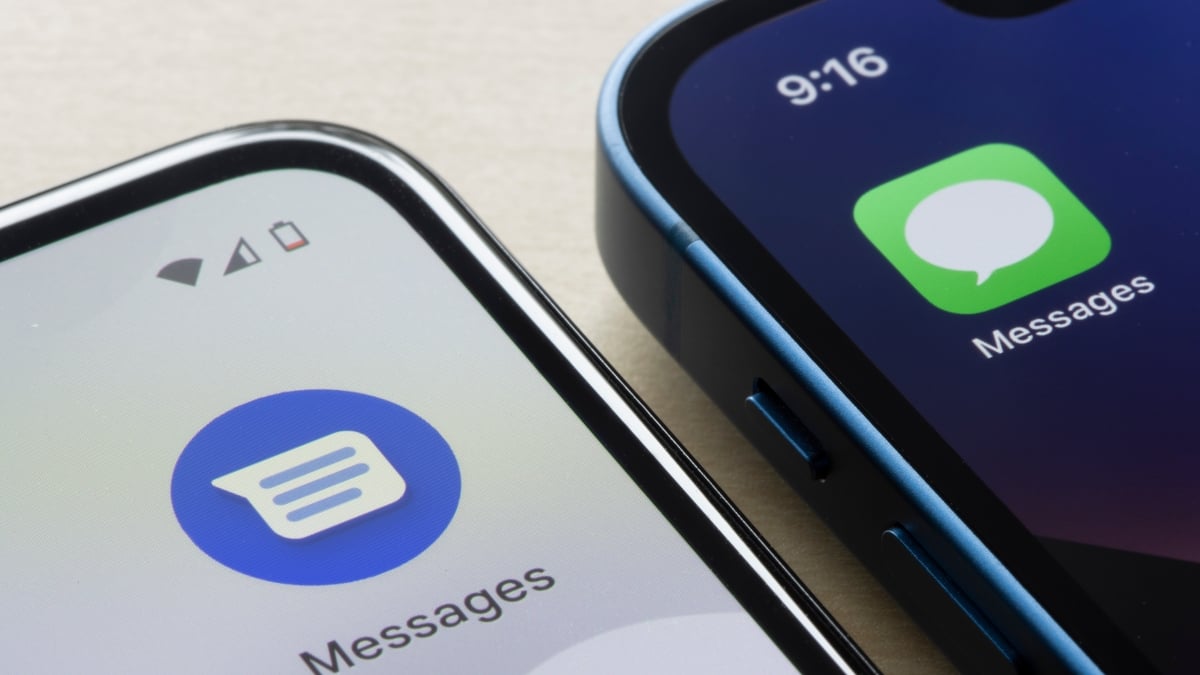
Perhaps the best thing to happen to smartphones in the past five years was Apple’s decision to start supporting RCS. Ever since, texting between iPhone and Android hasn’t been a nightmare caused by SMS: Group chats function as they should, photos and videos can be sent in high quality, and you can even see when the other person is typing—though the messages are still green. While the experience is miles better than it used to be, it isn’t perfect. There are still some key functions missing from RCS on iPhone. For instance, you can’t unsend messages, reply to a thread, or edit iPhone messages. The latter can only happen on the Android side, while only iPhones can react with emojis right now. The biggest omission, however, is support for end-to-end encryption (E2EE). This is arguably the most important advantage RCS has over SMS. E2EE “scrambles” your messages, and only you and the recipient(s) have the “keys” to unscramble them. If a hacker were to remotely access your messages from an untrusted device, they wouldn’t be able to read them: The only way to see these messages in plain text is to have access to the trusted device associated with them. If you have an Android device, and you text with other Android devices using Google Messages, you likely have this advantage. You may see a small lock icon next to your messages as you send them, indicating that texts are sent with E2EE. iPhones have this advantage when texting other iPhones, as iMessage is E2EE as well. But when you text from an iPhone to an Android, whether or not you’re using RCS or SMS, those messages are not protected by encryption, which leaves you vulnerable to hacking.
End-to-end encryption support for RCS will roll out with iOS 26.5That’s now changing. Apple has been beta testing E2EE support for RCS on iPhone since iOS 26.4, and confirmed the feature will ship with iOS 26.5. Not only that, anyone can try it out right now—assuming you’re fine with enrolling your iPhone in Apple’s beta program. As long as your Android friends are running the latest version of Google Messages, and you’re running Apple’s iOS 26.5 beta, you can rest easy knowing your messages are protected by end-to-end encryption.

What do you think so far?

Once iOS 26.5 officially drops, you’ll be able to take advantage of E2EE with RCS. But until then, you’ll need to install the latest beta on your iPhone to give this encryption a try. Don’t do that without thinking it through, though. Beta software is in testing, which means there may be bugs and other instabilities you aren’t used to dealing with in iOS. If something goes wrong, and you need to uninstall the beta, you’ll need to reset your iPhone entirely. Unless you have a full backup of iOS 26.4 on your computer, you could lose data. As such, I never recommend installing betas on your primary device. It’s your choice, of course: Just understand the risks. All that said, Apple’s latest beta update is the release candidate (RC), which, barring any major bugs or glitches, is the version of iOS 26.5 the company plans to release to the general public. It’s by far the safest of the beta releases to try, but still comes with some risk.


Source link