DAILY NEWS

Stay Ahead, Stay Informed – Every Day

Advertisement
How I Use Claude to Build Full-Stack Apps in Under 4 Hours — The Complete Workflow


Three months ago, I spent 3 weeks building a SaaS dashboard. Last week, I built a more complex one in 3 hours and 42 minutes — using Claude as my co-pilot.

The difference wasn’t just “using AI.” It was a specific, repeatable workflow that eliminates the bottlenecks most developers hit when coding with AI.

Here’s exactly how I do it — step by step, with real prompts.

The Problem: Most People Use AI Wrong

I see developers making the same mistakes:

❌ Pasting entire codebases into Claude and hoping for the best
❌ Using vague prompts like “build me a dashboard”
❌ Not breaking down the problem before asking AI
❌ Copy-pasting AI output without understanding it
❌ Not using AI for the things it’s actually best at

The secret? AI is a junior developer that never sleeps, never gets bored, and has read every Stack Overflow answer ever written. But like any junior dev, it needs clear direction.

My 4-Hour Framework

I divide every project into 4 phases of ~1 hour each:

Phase
Time
What AI Does
What I Do

1. Blueprint
60 min
Generates architecture, tech choices
Define requirements, review plan

2. Scaffold
60 min
Generates boilerplate, database schema
Set up repos, configure env

3. Build
60 min
Writes core feature code
Review, test, iterate

4. Polish
45 min
CSS, error handling, edge cases
Final review, deploy

Let me walk through each phase.

Phase 1: Blueprint (60 Minutes)

Before writing a single line of code, I spend an hour planning with Claude. This is the most important phase and the one most people skip.

Step 1: Define the Problem

I start with a clear, structured prompt:

I’m building a SaaS product. Here’s what I need:

Product: A subscription analytics dashboard
Users: SaaS founders who want to track MRR, churn, and LTV
Data Source: Stripe API
Tech Stack: Next.js 14 (App Router), TypeScript, Prisma, PostgreSQL, TailwindCSS
Timeline: Need a working prototype today

Give me:
1. A complete database schema with all relationships
2. API route structure (REST endpoints)
3. Component hierarchy (what pages/components I need)
4. The order I should build things in (dependency graph)
5. Potential gotchas I might hit

Enter fullscreen mode

Exit fullscreen mode

Why this works: Claude generates a concrete plan. No more “I’ll figure it out as I go.” You get a roadmap.

Step 2: Generate the Database Schema

Then I drill into each part:

Based on the schema you generated, write:
1. Complete Prisma schema with all models, relations, and indexes
2. Seed data (at least 20 records per model) that looks realistic
3. Migration SQL if needed

Format as a single `schema.prisma` file I can copy directly.

Enter fullscreen mode

Exit fullscreen mode

Step 3: API Contract

For each API route, give me:
1. The endpoint path and HTTP method
2. Request body/params type (TypeScript interface)
3. Response type (TypeScript interface)
4. Authentication requirement
5. Brief description of what it does

Format as a TypeScript file with all types exported.

Enter fullscreen mode

Exit fullscreen mode

Phase 1 output: You now have a complete spec — database schema, API types, component list, and build order. This would take 2-3 days to produce manually.

Phase 2: Scaffold (60 Minutes)

Now let AI generate all the boring stuff.

Generate Project Structure

Set up a Next.js 14 project with:
– App Router (not Pages Router)
– TypeScript strict mode
– TailwindCSS with these custom colors: (your palette)
– Prisma with PostgreSQL
– NextAuth.js for authentication (GitHub + email)
– shadcn/ui component library

Give me the exact commands to run and the folder structure.

Enter fullscreen mode

Exit fullscreen mode

Generate Type Definitions

Create a complete `types/index.ts` file that includes:
– All database model types (from our schema)
– All API request/response types
– All component prop types
– Utility types (pagination, API response wrapper, etc.)

Make it fully typed. No `any` allowed.

Enter fullscreen mode

Exit fullscreen mode

Generate Utility Functions

Write these utility functions:
1. `apiResponse(data, status, message)` — standardized API response
2. `validateRequest(schema, body)` — Zod validation wrapper
3. `paginate(query, page, limit)` — cursor-based pagination
4. `formatCurrency(amount, currency)` — i18n currency formatting
5. `calculateMRR(subscriptions)` — Monthly Recurring Revenue calc
6. `calculateChurn(subscriptions, period)` — Churn rate calc

Each function should be production-ready with proper error handling.

Enter fullscreen mode

Exit fullscreen mode

Phase 2 output: A complete project skeleton with types, utils, auth, and database — ready to build features on top of.

Phase 3: Build (60 Minutes)

This is where the magic happens. I build features one at a time, using a specific prompt pattern.

The Feature Prompt Pattern

For every feature, I use this template:

Build me the (FEATURE NAME) feature.

Context:
– Tech stack: Next.js 14, TypeScript, Prisma, TailwindCSS, shadcn/ui
– Database schema: (paste relevant models)
– API types: (paste relevant types)

Requirements:
1. (Specific requirement 1)
2. (Specific requirement 2)
3. (Specific requirement 3)

Give me:
1. The API route code (app/api/…)
2. The React component code
3. Any Prisma queries needed
4. Test cases for edge cases

Important rules:
– Use Server Components by default, Client Components only when needed
– Handle loading states and errors
– Use optimistic updates where appropriate

Enter fullscreen mode

Exit fullscreen mode

Example: Building the Dashboard Page

Build me the main dashboard page.

It should show:
1. Revenue chart (line chart, last 12 months) — use Recharts
2. Current MRR card with % change from last month
3. Active subscribers count
4. Churn rate card
5. Top 5 plans by revenue (horizontal bar chart)
6. Recent transactions table (last 10, with pagination)

Layout:
– Top row: 3 stat cards
– Middle row: Revenue chart (span 2/3), top plans chart (span 1/3)
– Bottom row: Recent transactions table (full width)

Use shadcn/ui Card, Table, and Badge components.

Enter fullscreen mode

Exit fullscreen mode

The key here is specificity. I tell Claude:

Exactly which UI components to use
The exact layout I want
The exact data sources

Vague prompts = vague output. Specific prompts = production-ready code.

Phase 4: Polish (45 Minutes)

The last phase is where good apps become great apps.

Error Handling

Go through all API routes and add:
1. Input validation with Zod
2. Proper error responses (400, 401, 403, 404, 500)
3. Error logging
4. Rate limiting considerations

Also add a global error handler for unhandled exceptions.

Enter fullscreen mode

Exit fullscreen mode

Edge Cases

For the dashboard, handle these edge cases:
1. No data yet (empty state with helpful message)
2. Very large numbers (format as K/M/B)
3. Negative growth (red indicators)
4. Stale data (show “last updated” timestamp)
5. Loading states for every async component
6. Mobile responsiveness (stack cards vertically on small screens)

Enter fullscreen mode

Exit fullscreen mode

CSS Polish

Polish the dashboard UI:
1. Add subtle animations (fade-in for cards, chart animations)
2. Consistent spacing and border radius
3. Hover effects on interactive elements
4. Loading skeletons for all data components
5. Dark mode support (use CSS variables or Tailwind dark: prefix)

Enter fullscreen mode

Exit fullscreen mode

Phase 4 output: A polished, production-ready app that handles errors gracefully and looks professional.

The Results

Using this workflow, here’s what I’ve shipped:

Project
Time
Features
Would’ve Taken (Manual)

SaaS Analytics Dashboard
3h 42m
Charts, tables, auth, CRUD
2-3 weeks

Blog Platform
4h 15m
CMS, auth, comments, SEO
1-2 weeks

E-commerce Admin
5h 10m
Inventory, orders, analytics
3-4 weeks

Task Management App
3h 55m
Kanban, real-time, teams
2 weeks

The key insight: I’m not asking Claude to build the entire app at once. I’m using it as a force multiplier in each phase, giving it clear, specific tasks.

5 Tips That Made the Biggest Difference

1. Never Ask AI to “Build an App”

Instead, ask it to build one feature at a time. “Build me a login page” works. “Build me a SaaS” doesn’t.

2. Always Generate Types First

Types are the contract between you and AI. Generate them in Phase 1, reference them in every prompt. This dramatically reduces hallucinations.

3. Use Claude Projects

Claude Projects let you attach files (schema, types, utils) that persist across conversations. This means you never have to re-paste context.

4. Review, Don’t Just Accept

AI will write code that works but might not be ideal. Always review:

Security (auth, input validation)
Performance (N+1 queries, unnecessary re-renders)
Accessibility (keyboard nav, screen readers)

5. Iterate with Specific Feedback

Instead of “this doesn’t look right,” say:

“The cards should be 1/3 width on desktop, full width on mobile”
“Add a subtle blue left border to the stat cards”
“The chart tooltip should show the exact date and amount”

Common Mistakes & How to Avoid Them

Mistake
Fix

Pasting 2000 lines of code
Share files via Claude Projects instead

“Fix this bug” with no context
Include error message, expected behavior, relevant code

Building everything at once
One feature, one prompt, one PR at a time

Ignoring AI warnings
Read every warning, investigate red flags

Not testing
Run code after every major generation, test edge cases

The Bottom Line

Claude (and AI in general) isn’t a magic wand. It’s a force multiplier that works best when you:

Plan first — Spend time on the blueprint before coding

Be specific — Detailed prompts = detailed output

Iterate fast — Small, focused tasks over big, vague ones

Review carefully — You’re the senior dev, AI is the junior

Use the right tools — Claude Projects, shadcn/ui, Prisma, etc.

With this workflow, I’ve gone from multi-week projects to multi-hour projects — without sacrificing quality.

What’s your AI coding workflow? I’d love to hear what’s working for you in the comments.

If you found this helpful, follow me for more AI developer content. I write about practical AI workflows, not hype.

Source link

shk: A Local-First Security Guardrail CLI for AI Coding Agents


Secret scanning often starts at Git. AI coding agents can make that too late.

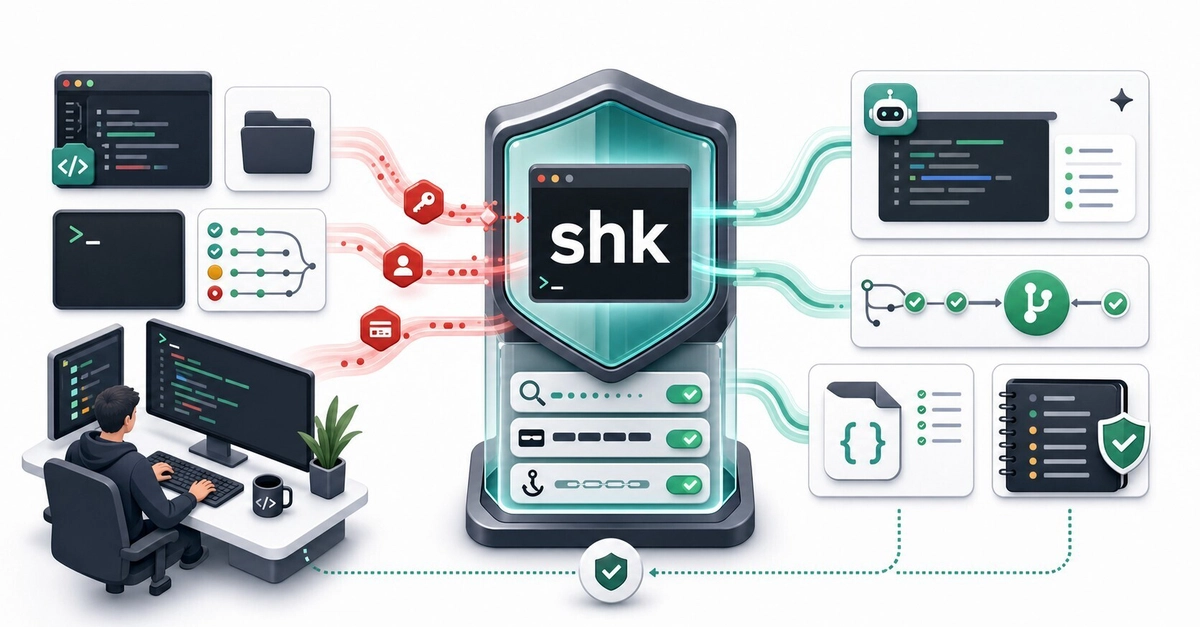
They can read local files, summarize logs, run commands, and transform sensitive context before anything is committed. shk is a local-first CLI for that messy pre-commit space: scan secrets and PII, mask prompts, and install managed hooks for Claude Code, Cursor, and Codex.

The problem is no longer just “secret reaches Git”

Most secret-scanning workflows are built around a familiar boundary: stop credentials before they land in Git, CI logs, or a release artifact.

AI coding agents move that boundary earlier.

An agent might read a file while following an import chain. It might summarize a pasted error log. It might run a shell command that prints .env contents. It might create a new file that quietly contains a token from earlier context. None of that requires a commit.

That is the gap shk is trying to cover: the local, messy, pre-commit space where AI tools actually operate.

What shk does in practice

shk is not one more dashboard you have to check. It is a single Rust binary that you put around the workflows where sensitive context tends to leak:

Before sharing context with an AI tool, use shk mask to redact secrets and PII from a prompt, log, or snippet.

Before an AI tool reads, writes, fetches, or runs something, use managed hooks to audit or block risky operations.

Before a commit or pull request, use the same scanner through Git pre-commit hooks and GitHub Actions.

That gives you one policy file, one set of rules, and one exit-code contract across local use, AI hooks, Git, and CI.

A quick tour

Install the latest release:

curl –proto ‘=https’ –tlsv1.2 -LsSf https://github.com/Kazuki-tam/security-harness-kit/releases/latest/download/shk-cli-installer.sh | sh

Enter fullscreen mode

Exit fullscreen mode

Windows users can install from PowerShell:

powershell -c “irm https://github.com/Kazuki-tam/security-harness-kit/releases/latest/download/shk-cli-installer.ps1 | iex”

Enter fullscreen mode

Exit fullscreen mode

Both shk and security-harness-kit resolve to the same CLI.

Start with a policy file:

shk init

Enter fullscreen mode

Exit fullscreen mode

Scan the current project:

shk scan .

Enter fullscreen mode

Exit fullscreen mode

Example output:

3 findings

HIGH secret.openai_api_key src/app.ts:12 Possible OpenAI API key detected
MED pii.ja.phone config/dev.ts:5 Japanese phone number detected
MED pii.en.ssn docs/test.md:8 US Social Security Number detected

Enter fullscreen mode

Exit fullscreen mode

Need a machine-readable report for automation? Use JSON. Raw matched values are not emitted; findings use redacted_value: “(REDACTED)”.

shk scan . –json

Enter fullscreen mode

Exit fullscreen mode

Need to paste a production log into an AI chat? Mask it first:

shk mask

Enter fullscreen mode

Exit fullscreen mode

Need to protect the commit path?

shk scan –staged
shk hooks install

Enter fullscreen mode

Exit fullscreen mode

The basic loop is intentionally boring: scan, review, mask, and block only when a configured threshold is met.

The AI-specific part: managed hooks

The more interesting piece is shk hooks install-ai.

Instead of relying on you to remember to scan every prompt, shk can write managed hook entries into supported AI tool configs:

# Preview the changes first.
shk hooks install-ai –dry-run

# Start in audit mode: log findings, never block.
shk hooks install-ai –audit

# Or target one tool.
shk hooks install-ai –tool cursor
shk hooks install-ai –tool claude-code –global

Enter fullscreen mode

Exit fullscreen mode

Project-level installs are the default. Global installs write to the user-level config for the selected tool.

Supported integrations:

Tool
Managed config

Claude Code
.claude/settings.json

Cursor
.cursor/hooks.json

Codex
.codex/config.toml

The managed entries are tagged so they are easy to identify later (“_shk_managed”: true in JSON configs, or # shk-managed-start / # shk-managed-end in shell and TOML blocks).

It checks intent, not only text

Secret scanners usually inspect content. AI hooks also need to inspect actions.

In hook mode, shk reads the AI tool’s JSON hook payload and runs an action guard before scanning extracted text. The guard looks for operation shapes such as:

Reads or writes involving sensitive paths.
Commands that dump .env-style files.
Destructive recursive removal.
Direct database mutation commands.
Privilege or system configuration changes.
External transfer commands.
Package-manager operations.

The default recommended profile is conservative. A strict profile can also block opaque execution forms such as bash -c, python -c, and node -e, because pretending to safely interpret every nested command string is usually worse than being explicit about the risk.

You can tune this in shk.toml with (action_guard) allow and deny patterns.

Audit first, then block

Hooks make decisions through exit codes, so the contract is small:

Code
Meaning

0
No finding at or above the active threshold, or audit/post-hook completed.

1
Scan findings met or exceeded the active threshold.

2
A blocking AI pre-hook fired, or shk scan –staged ran outside a Git repo.

–audit always exits 0. Post-tool hooks also always exit 0, because the operation already happened and the useful behavior is reporting, not pretending to undo it.

That makes rollout straightforward:

shk hooks install-ai –audit

Enter fullscreen mode

Exit fullscreen mode

Let it run for a few days. Review .shk/audit.log. The log is metadata-only: counts, tool name, hook phase, display path, suppressed count, and maximum severity. It does not store raw matched values.

Once the noise level is acceptable, reinstall without –audit and let high-severity pre-hook findings block.

Same binary for Git and CI

AI hooks are the new boundary, but Git still matters.

Install a managed pre-commit hook:

shk hooks install

Enter fullscreen mode

Exit fullscreen mode

Generate a GitHub Actions workflow:

shk ci init github

Enter fullscreen mode

Exit fullscreen mode

The generated workflow installs the prebuilt release binary and runs:

shk scan . –json –fail-on high

Enter fullscreen mode

Exit fullscreen mode

It also uses a few defaults I wanted out of the box:

permissions: contents: read for minimal GITHUB_TOKEN scope.

concurrency: cancel-in-progress: true so newer PR pushes cancel stale runs.

actions/checkout@v6.
Release installer instead of cargo install, so CI does not rebuild a Rust toolchain.

You can also generate rollout variants when you need them:

shk ci init github –mode audit for non-blocking CI adoption.

shk ci init github –shk-version v0.2.3 for reproducible pinned installs.

A few workflows beyond scanning

These are the commands that make shk feel less like a one-off scanner and more like a local security harness:

shk doctor checks project hygiene, including ignore coverage and plaintext .env files.

shk doctor ignore –fix appends missing required patterns to .gitignore.

shk env dotenvx import-keys .env.keys moves dotenvx private keys into the OS credential store.

shk env dotenvx run — npm test injects stored dotenvx keys only into the child process.

shk secrets push pushes dotenv payloads into AWS Secrets Manager or GCP Secret Manager through the official aws / gcloud CLIs, with dry-run, audit logging, and PII pre-scan.

shk skills install deploys an embedded agent skill for Claude Code, Codex, and Cursor so agents know how to call shk in the project.

All of these are optional. The tool is still useful if you only use scan, mask, and hooks.

Suppression without pasting secrets into config

False positives happen. Test fixtures happen. Public demo values happen.

shk supports a few suppression shapes:

Inline comments such as # shk-ignore and # shk-ignore-next-line .
Path-based ((allowlist)) entries in shk.toml.
Value-specific suppression using value_hash = “sha256-hmac:…”.

The value hash is not encryption. It is a deterministic HMAC-SHA256 fingerprint over the raw value and rule id, so someone with the candidate value can recompute it. Its purpose is narrower and practical: your policy file should not become the place where people paste the secret they are trying to suppress.

Expired allowlist entries turn into low-severity warning findings instead of silently disappearing.

What it intentionally does not promise

Security tooling gets dangerous when it overstates its guarantees, so here is the honest scope.

shk is pattern-based. Built-in rules combine hand-tuned shk detections with generated secret.gitleaks.* rules adapted from the gitleaks default configuration. That covers many common providers and formats, but false positives and false negatives are both possible.

The PII rules are designed for “do not paste this into an AI prompt” hygiene. They are not compliance evidence.

The action guard is heuristic. It can flag risky operation shapes in hook payloads, but it is not a shell interpreter and should not pretend to be one.

shk is also not a replacement for a secret manager, a cloud provider’s scanning features, or a dedicated enterprise secret-scanning platform. It is a local guardrail layer for the part of development where AI tools read, transform, and generate context.

Try it on an existing repo

The smallest useful sequence is:

shk init
shk scan .
shk hooks install-ai –audit

Enter fullscreen mode

Exit fullscreen mode

If the audit log looks reasonable after a short soak period, reinstall without –audit and block on high-severity pre-hook findings. If it is noisy, tune (thresholds), ((allowlist)), and (action_guard) first.

The goal is not to make the tool dramatic. The goal is to make secrets, PII, and risky AI operations visible before they leave the local development boundary.

Issues, rule contributions, and false-positive reports are welcome. The rule set gets better as more real codebases run through it.


Source link

I Was Cleaning the Same Repeated Words Manually… So I Built This


The Problem Looked Small at First

I was editing a big chunk of text.

And suddenly I noticed something annoying:

Same words repeated
Duplicate keywords everywhere
Repeated lines inside copied content

At first I thought:

“I’ll just remove them manually.”

Big mistake.

What Happened Next

The more text I checked…

The more duplicates I found.

Same word.Same keyword.Same line.

Again and again.

And after a while:

👉 I wasn’t editing content anymore👉 I was just cleaning repetition

The Most Frustrating Part

You never fully trust manual cleanup.

Because there’s always that feeling:

“I probably missed some duplicates.”

And honestly…

Most of the time, you do.

Why I Built This Tool

So I built something simple:

👉 https://allinonetools.net/duplicate-word-remover/

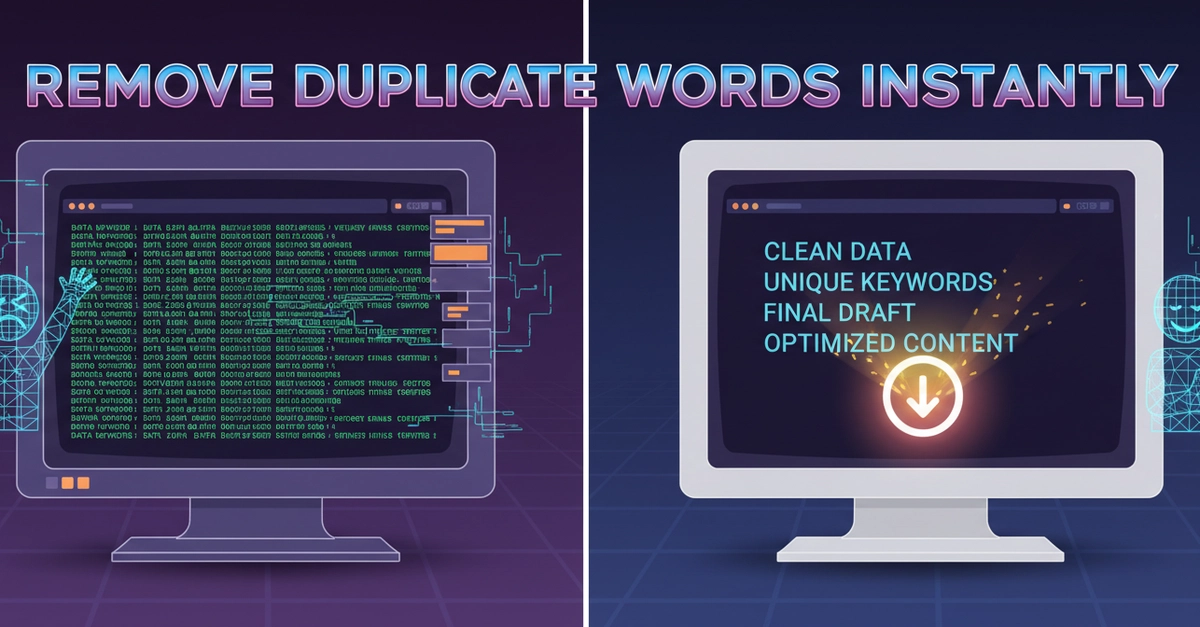
A tool that can instantly:

Remove duplicate words
Remove duplicate keywords
Clean repeated lines
Process text line by line

No signup.No setup.No complicated options.

Just:

Paste → Remove Duplicates → Done

What I Realized

This problem happens everywhere.

Not just in writing.

People deal with duplicate text while:

Cleaning keyword lists
Organizing copied data
Editing AI-generated text
Formatting SEO content
Managing large text blocks

Why Duplicate Cleanup Matters

Repeated text creates:

Messy content
Poor readability
Harder editing
Confusing keyword lists

Even small repetitions make text feel unclean.

The Problem With Doing It Manually

Manual cleanup sounds easy…

Until:

The text gets large
Keywords repeat hundreds of times
Lines start looking identical

Then it becomes:

Slow, frustrating, and error-prone.

What I Focused On

I wanted the tool to feel instant.

So I kept it:

Fast
Minimal
One-click simple
Easy for large text blocks

Because this isn’t a “complex editing” task.

It’s a:

“Please clean this quickly” problem.

What Surprised Me

After building it:

Many people used it for SEO keyword cleanup
Others used it for AI-generated content cleanup
Some used it just to organize messy copied notes

And the biggest thing?

👉 People loved the “line-by-line” cleanup.

Because it removes duplicates without breaking structure.

The Real Insight

A lot of productivity problems are not difficult.

They’re just:

Repetitive and annoying.

Simple Rule I Follow Now

If users repeat the same cleanup task often…

👉 It should be automated.

Final Thought

You don’t always need powerful software.

Sometimes:

A tiny tool that removes friction is enough.

Be honest — have you ever copied text and later realized:

Half the keywords were repeated?
Or the same lines appeared multiple times?

What do you usually do in that situation? 👇


Source link